
| Client Access Page |
Secure login is available for access to your files. This prevents your username
and password from being sent over the internet in plain text. You must use an
FTP client that supports FTP over SSL. If you do not have one, please
download and install the FileZilla FTP Client from:
http://filezilla-project.org/download.php
Follow the instructions below to configure it for access to our server.
1. Once you have started the FileZilla client, in the upper left corner, click "File"
and then "Site Manager" from the drop down menu. (see fig 1)
2. Click the "New Site" button. You can name this site (ie: Excalibur Pathology)
or just leave it as is, this is optional.
3. On the right hand side, next to "Host" enter: excalibur.serveftp.com. Next to
"Port" enter: 990
4. Next to "Server Type" click the down arrow and select "FTPS - FTP over
implicit TLS/SSL". Next to "Logontype" click the down arrow and select
"Normal". (You may select "Ask for password", or "Interactive" If you prefer to
be prompted for this information)
5. Enter your username and password in the following two boxes.
6. Upon successful connection to the server you will see your computer's
directories listed on the left, and any files and folders in your FTP directory
listed on the right.
7. To download a file.First select the directory on your computer, on the left of
the FTP client window, in which you wish to save your images. Next, select the
file on the right, right click on it and click "Download" from the menu. You
should see the file transfer start in the status portion of the client at the bottom.
(see fig 2)
8. If you wish to select multiple files to download at once, you may hold the
"ctrl" key on your keyboard and select each individual file you want to
download, or you may select the first file, and hold the "shift" key as you select
the last file in the list, to highlight them all for download. Then download just as
mentioned in step 7.
and password from being sent over the internet in plain text. You must use an
FTP client that supports FTP over SSL. If you do not have one, please
download and install the FileZilla FTP Client from:
http://filezilla-project.org/download.php
Follow the instructions below to configure it for access to our server.
1. Once you have started the FileZilla client, in the upper left corner, click "File"
and then "Site Manager" from the drop down menu. (see fig 1)
2. Click the "New Site" button. You can name this site (ie: Excalibur Pathology)
or just leave it as is, this is optional.
3. On the right hand side, next to "Host" enter: excalibur.serveftp.com. Next to
"Port" enter: 990
4. Next to "Server Type" click the down arrow and select "FTPS - FTP over
implicit TLS/SSL". Next to "Logontype" click the down arrow and select
"Normal". (You may select "Ask for password", or "Interactive" If you prefer to
be prompted for this information)
5. Enter your username and password in the following two boxes.
6. Upon successful connection to the server you will see your computer's
directories listed on the left, and any files and folders in your FTP directory
listed on the right.
7. To download a file.First select the directory on your computer, on the left of
the FTP client window, in which you wish to save your images. Next, select the
file on the right, right click on it and click "Download" from the menu. You
should see the file transfer start in the status portion of the client at the bottom.
(see fig 2)
8. If you wish to select multiple files to download at once, you may hold the
"ctrl" key on your keyboard and select each individual file you want to
download, or you may select the first file, and hold the "shift" key as you select
the last file in the list, to highlight them all for download. Then download just as
mentioned in step 7.
To access our server and view your slides on line over the Internet
we have provided the instructions below along with screen shots of
how to access our system. Please note that Excalibur Pathology
will have to provide you with Username and Password.
we have provided the instructions below along with screen shots of
how to access our system. Please note that Excalibur Pathology
will have to provide you with Username and Password.
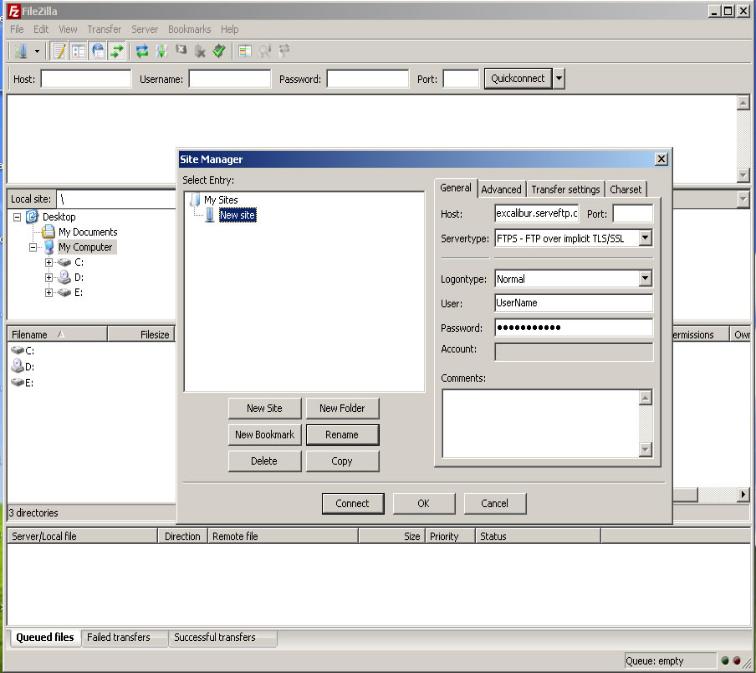

Fig 1
Fig 2
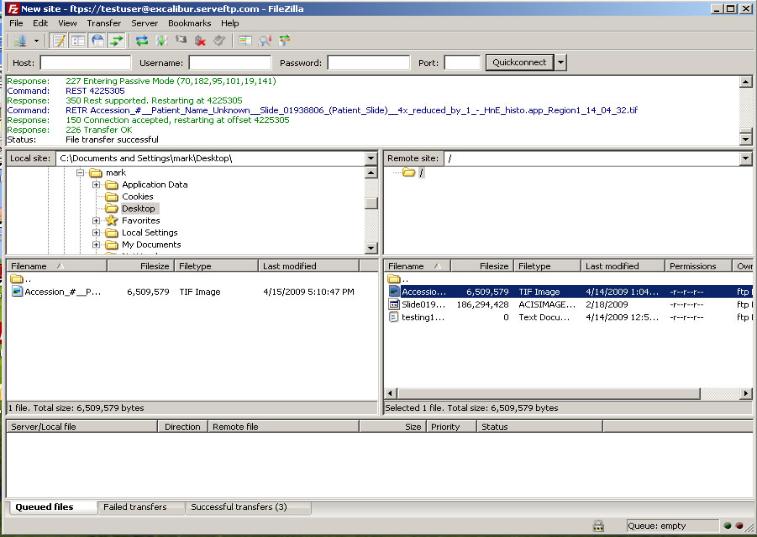
Screen shot to show access
 | |  | |  | |  | |  | |  |